Chapter 3. Restricted data import management
Table of Contents
Certain data imports are restricted. Whether data imports are restricted depends on the device type or/and the statistic interval of the data file. To enable the data import to AmmonitOR database, the data month has to be bought for every related device. The enabled data import periods stay as enabled forever. The following steps have to be done:
- Creating an Credit account
Go to Dashboard menu and click on Restricted data import management and add account here.
- Invite users to the Credit account (optional)
If you like to share the Credit account with other users. Add them as account holders.
- Wait for varification by Ammonit
Ammonit will verify every Credit account request, that might take time. Ammonit checks if a customer ID already exists or contacts you to get a new one.
- Get Credits
Click on an Credit account and click on the Get credits button. Here Credits can be ordered.
- Spend Credits, enable data import
Go to Dashboard menu and click on Restricted data import management and chose the device to enable data import. Click on the "Spend Credits" button and elect the months of data import.
3.1. Credit account
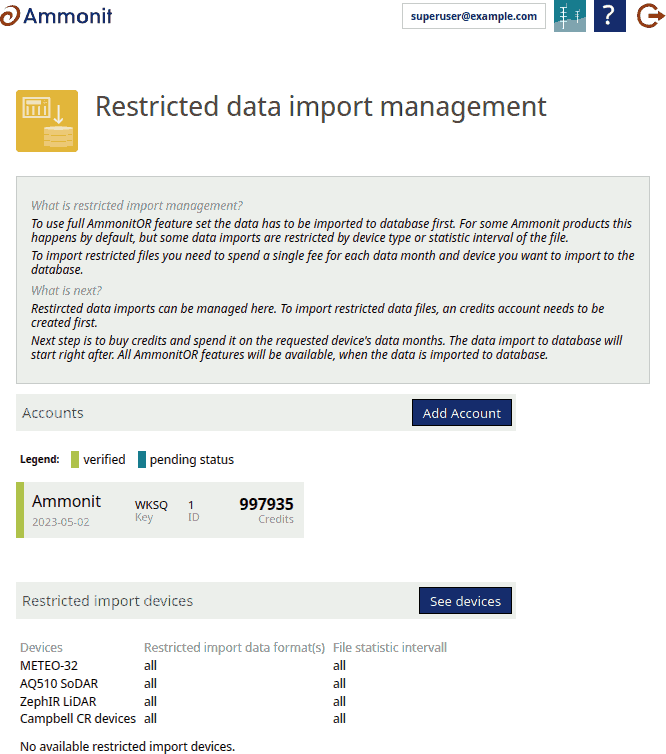
A Credit account enables the user to buy Credits. This Credits can be spend on devices to enable the data import. Therefore an Credit account has to be created first. In Dashboard menu click on Restricted data import management and add account here. Type in your name, billing name, billing country and your Ammonit buisness partner ID if you have already one. If you do not have an Ammonit buisness partner ID Ammonit will fill in this field during the account verification. To have multiple accounts is possible, but only one per Ammonit buisness partner ID. Every Credit account can have multiple account holders.
After creation of an Credit account it needs few days until Ammonit has verificated the account. At the Credit accounts overview the status of the account can be checked if it is still pending or already verified. Is the Credit account verified Credits can be bought.
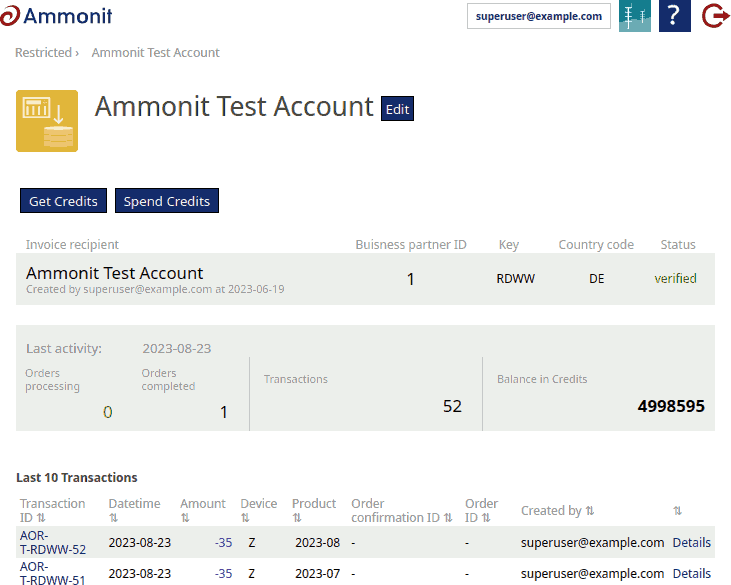
All Credit movements will be logged under the Credits account. Orders are listed under the Orders Button. All transactions are listed under the Transactions view. Orders and transactions are downloadable as CSV file, easy readyable by any spreadsheet application software like EXCEL or Open Office Calc. At the Credits account view Credits can be bought or spend.
![[Note]](admon/note.png) | Note |
|---|---|
There is just one Credit account allowed per Ammonit buisness partner ID. Contact Ammonit support if the message of "Credits account already exists with the same Ammonit buisness partner ID in the system" is displayed. |
Figure 3.1. Credit account list
3.2. Account holder management
An Credit account admin invites other users by clicking on the Manage button next to the Account holders headline on the Credit account detail page. Enter the email address of the user and decide, whether the new user should have admin permissions or should receive notifications, and click Add. AmmonitOR adds the new user to the user list. The account holder role can be changed in the combobox in the list of existing users. Press Update to apply the new account holder role.
![[Important]](admon/important.png) | Important |
|---|---|
The creator of an Credits account has full permissions and can not be removed from the account. |
Figure 3.2. Credit account detail
3.3. Get Credits
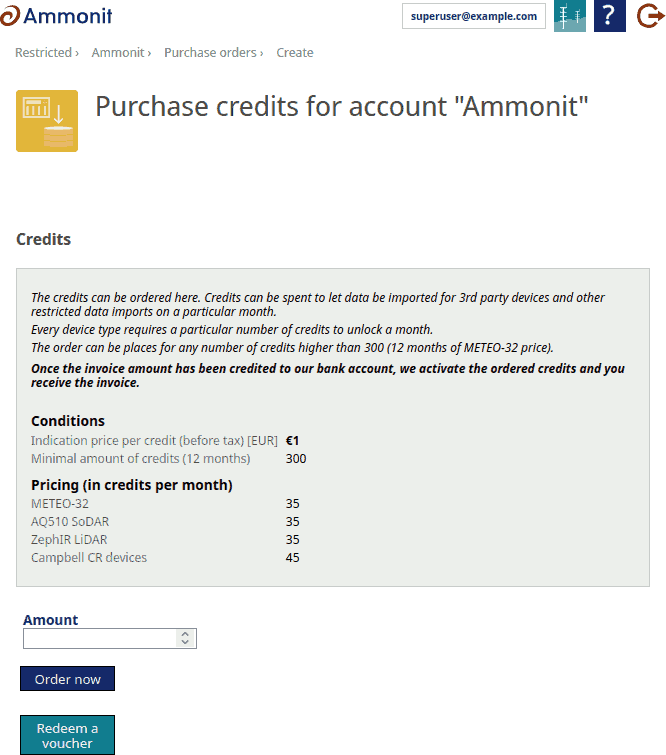
Several ways exist to get Credits. First method is, that Credits can always be ordered through the Ammonit sales team. Second method is to get Credits through AmmonitOR Get Credits interface. The third method uses the same way as the second method, but uses redeem a voucher option.
Enter an credit account and click on the Get Credits button. In the Get Credits view is in addition a green button Redeem a voucher to redeem a voucher code.
After placing an order an confirmation email with invoice will be sent. The Credits will be enabled if the payment reached Ammonit.
| Note |
|---|---|
Minimal amount of Credits have to be bought per order. The order can be places for any number of Credits higher than 300 (equivalent of around 9 months of Meteo-32 data). |
| Important |
|---|---|
An order will expire after 3 months. |
Figure 3.3. Get credits
3.4. Spend Credits
Credits can be spend on enable data import for particular month for a device. When bought, it unlocks the import of the data files into database of month in every project for this device in AmmonitOR forever. The number of Credits to be spend depends on the device type or/and the statistic interval of the data file.
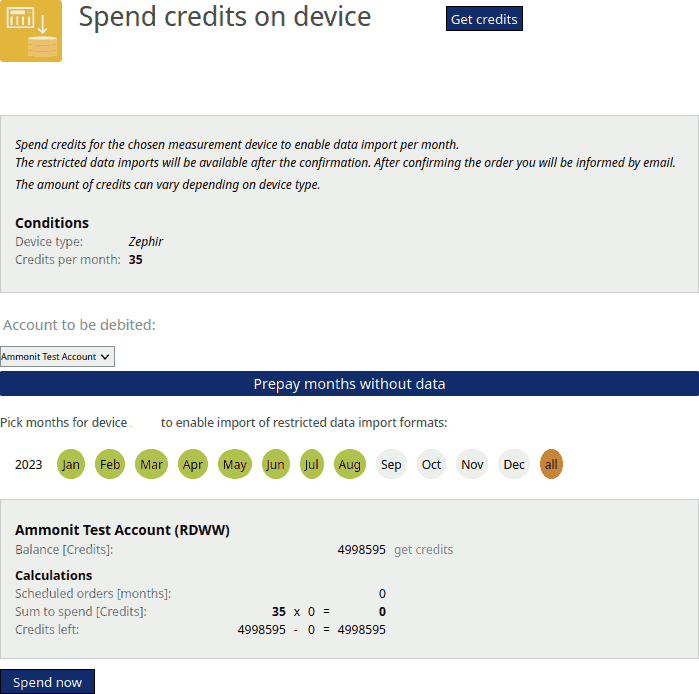
Credits can be spend in menu of Credit accounts or in Restricted data import management. A list of available devices are displayed, if you click on See devices. Choose one and select the months for unrestricted data import. Please also specifiy credits account, which should be debited. If you want to unrestrict data import for months which do not include data (yet), they are selectable after clicking Prepay months without data.
In the blue box are the calculations displayed. Click > to continue the order process. Confirming the order through the pop up enables data import for the chosen device.
| Note |
|---|---|
Devices have different prices depending on the device type. |
| Important |
|---|---|
Once enabled unrestricted months can't be re-done. |
Figure 3.4. Device list overview of devices with restricted data import
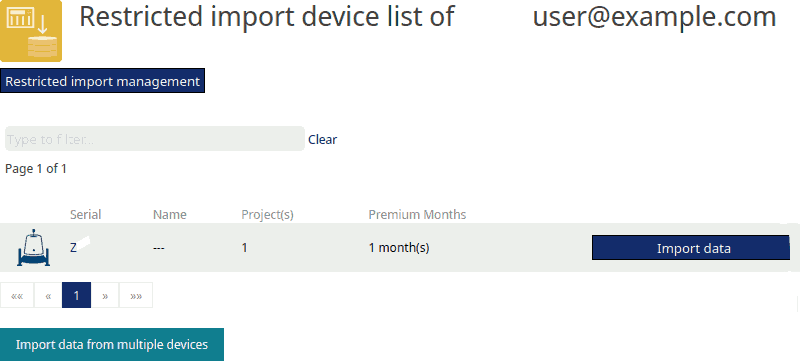
Figure 3.5. Spend credits