Chapter 4. User management
Table of Contents
4.1. User access
The login details of a registered user are valid for all projects, to which the user has access rights. There are no project-dependent logins.
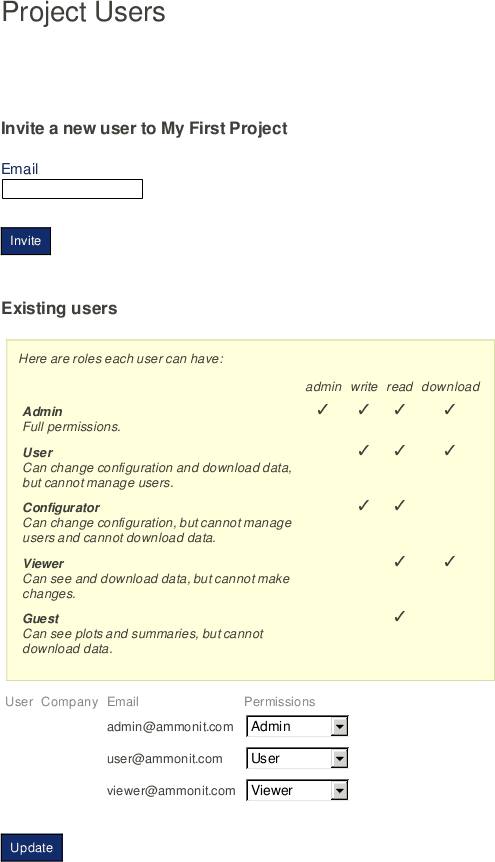
AmmonitOR offers an integrated user rights management system. Five user roles with different permissions are available: Admin, User, Configurator, Viewer and Guest.
Table 4.1. User Roles in AmmonitOR
| User Role | Permission |
|---|---|
| Admin | Full permission for accessing, entering and changing entries. |
| User | Full read and write access, except for user management. |
| Configurator | Full read and write access as User, but cannot manage users and cannot download data. |
| Viewer | Full read rights: Viewer can see and download all. Modifications and changes are not allowed. |
| Guest | Limited read rights: can see plots and summaries, but is not allowed to download data. |
The number of users within a project is displayed on the project overview page (see also Section 9.1.1, “Project details”). Click on Edit to manage user rights (Only available for users with Admin rights): invite new users, change user roles or remove project users.
Only users with
Admin rights are allowed to manage user roles.
All project users are sorted by their email address in ascending order.
Figure 4.1. User management
 |
![[Important]](admon/important.png) | Important |
|---|---|
The logged-in user cannot modify their own rights. |
A column indicates which users have enabled two-factor authentication (see Section 12.6, “Two-factor authentication”).
After creating a new project the user automatically becomes the project owner with Admin right.
4.2. Adding users
Users with
Admin rights can invite other users by clicking on the
Edit button next to the
Users headline on the project overview page. Enter the email address of
the user and click
Invite. AmmonitOR adds the new user with
Viewer rights to the user list. The user role can be changed in the
combobox in the list of existing users. Press
Update to apply the new user role.
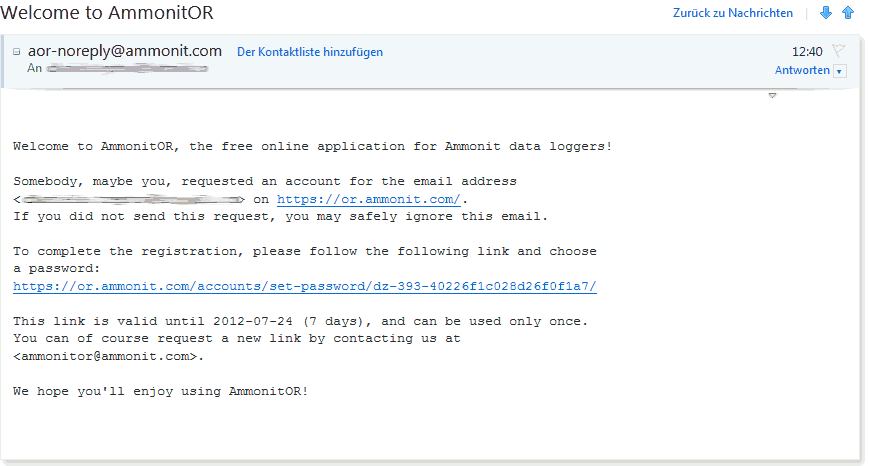
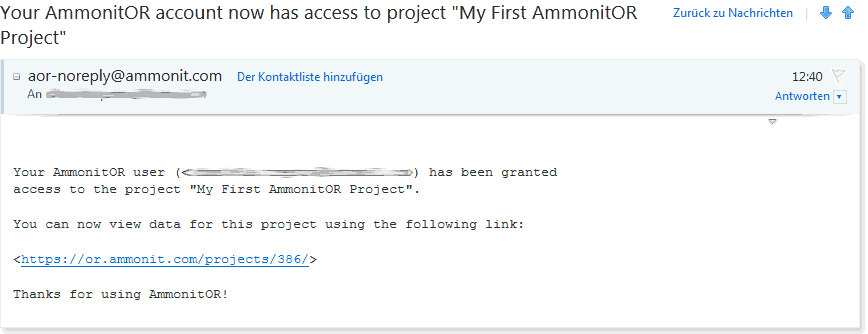
If the new user does not have an AmmonitOR user access yet, AmmonitOR sends a welcome message to set up the user access. The user has to click on a link in the email (see Figure 4.2, “Welcome message”) and follow the instructions to set name and password for the user access. The created password is valid for all projects, to which the user will be invited. Additionally, the new user receives an email with the invitation to the specific project (see Figure 4.3, “Invitation to a project”). By clicking on the link in the invitation email, the AmmonitOR login page opens in the browser and the user can login with the created login details.
Figure 4.2. Welcome message
If the invited user has already an AmmonitOR user access, the user receives an email with the invitation to the project (see Figure 4.3, “Invitation to a project”). The user accesses the project with its email address and password, which he / she uses for other AmmonitOR projects, too.
Figure 4.3. Invitation to a project
![[Note]](admon/note.png) | Note |
|---|---|
If users, who already have an AmmonitOR user access, are invited to a new AmmonitOR project, they can log in with their existing password. In order to set a new password, click on Forgot password. |
4.3. Excluding users from a project
If a user should be excluded or removed from the project, select
Remove in the permission combobox. After clicking on
Update the user is deleted from the project users list.