Chapter 12. Security
Table of Contents
In order to monitor your measurement campaigns, measurement data is securely transmitted to AmmonitOR and can be accessed via encrypted HTTPS connection. To protect data from unauthorized access, AmmonitOR encrypts all communications using the industry standard Open SSH protocol (for further details refer to Wikipedia). All browser sessions are encrypted using the SSL (Secure Sockets Layer) protocol. For more information refer to Wikipedia.
Export data files can be encrypted using GnuPG. GnuPG is a free cryptographic software, which uses public-key cryptography. To encrypt files and messages, GnuPG uses asymmetric keypairs (public and private key), which are individually created by GnuPG users. Refer to Wikipedia for further details.
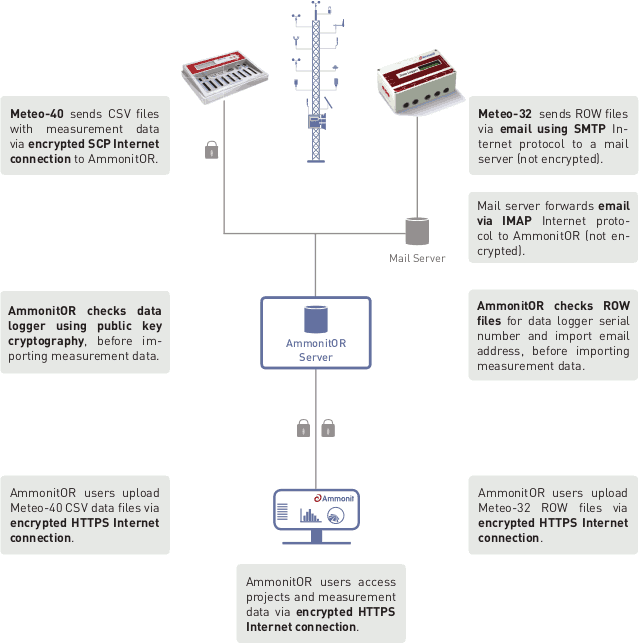
Figure 12.1. Interaction between AmmonitOR and data logger
12.1. Accessing AmmonitOR
Users access AmmonitOR via an encrypted HTTPS internet connection
(https://or.ammonit.com).
12.2. User management
To view and edit projects in AmmonitOR, users have to be registered. According to the integrated user rights management, AmmonitOR offers several user roles with different permissions. Users can only access projects to which they have been invited to. Refer to Chapter 4, User management for further details.
User rights are project-related, i.e. that users can have different permission in different projects.
Only users with assigned permissions are allowed to modify project and data logger settings as well as to invite new project users and assign user rights.
12.3. Data transfer between data logger and AmmonitOR
12.3.1. Data transfer between Meteo-40, Meteo-40 Plus, Meteo-42, MeteoLaser and AmmonitOR
Meteo-40, Meteo-40 Plus, Meteo-42 and MeteoLaser uploads CSV files via SCP internet connection to AmmonitOR. The connection is encrypted. Before the data is imported, AmmonitOR checks the data logger using public-key cryptography.
Using the
Project key, the measurement data is imported to the corresponding
project in AmmonitOR.
12.3.2. Data transfer between Meteo-32 and AmmonitOR
The ROW files of Meteo-32 are send via email using SMTP internet protocol to a mail server. The mail server forwards the email using IMAP internet protocol to AmmonitOR. The connection between data logger and AmmonitOR is not encrypted. Before the measurement data is imported, AmmonitOR checks ROW files for serial number and import email address of the data logger.
12.4. Manual upload of data files to AmmonitOR
If you prefer to upload data files manually to your AmmonitOR account, the files are transferred via a secure HTTPS connection. The connection to or.ammonit.com is encrypted using high-grade encryption, AES 256 CBC, with SHA1 for message authentication and DHE_RSA as key exchange mechanism. The certificate is verified by Thawte, Inc. The encryption prevents unauthorized people from viewing any transmitted information.
For further details about the certificate refer to the information displayed in your browser.
12.5. Encrypted data export
Data export files can be encrypted using GnuPG. Refer to Section 8.4.2, “Signing and encrypting export files for Windows™ users” for further details.
12.6. Two-factor authentication
Two-factor authentication (2FA) lets you secure your account with a Time-based One-Time Password (TOTP) device. A compatible application such as Aegis or Google Authenticator dynamically generates single-use passwords which you enter when logging into AmmonitOR. This way, an actor in possession of your username and password but not your TOTP device cannot access your account.
The user access configuration page (accessible by clicking your name on the upper right navigation bar) has a button to enable 2FA. The button takes you to a page with a QR code which you can scan on your TOTP device. The page also displays some recovery tokens which you can use if you lose access to your 2FA device. Once you have scanned the QR code, enter the generated password to save the device in AmmonitOR.
Now, when you log in, after entering your username and password, you need to enter the generated password from your TOTP device.
Two-factor authentication can be disabled by pressing the disable button on the user access page.