Once you access the login page of the data logger over the web interface, you may log
into one of four accounts, which have different access rights:
Guest,
Viewer,
User or
Admin.
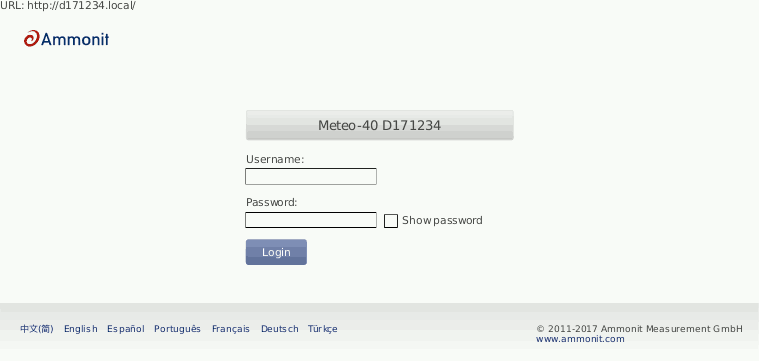
The original access password for each account is enclosed in the data logger's delivery. The passwords are unique for each Meteo-40. All passwords can be changed (see Change Access Passwords: in Section 4.2, “System Administration”) by the Admin user.
![[Warning]](admon/warning.png) | Warning |
|---|---|
Be careful if you change the password for the Admin account. A forgotten Admin password cannot be recovered. The data logger must be returned to Ammonit to restore the original password. |
Table 3.1. Accounts and permissions
| Account | Permissions |
|---|---|
| Guest |
|
| Viewer |
|
| User |
|
| Admin |
|
The Meteo-40 web interface is available in seven languages: Chinese, English, French, German, Portuguese, Spanish, and Turkish.
![[Important]](admon/important.png) | Important |
|---|---|
In order to use all functions of the web interface, activate JavaScript and Cookies in our web browser! |
After login, two links are shown in the upper right corner:
- Help
Access online help.
- Logout
Close the session, when access to the data logger is no longer needed.
Under these links the account you are logged into (
Guest,
Viewer,
User or
Admin) is shown, followed by the serial number of the data
logger.
| Warning |
|---|---|
Be aware that due to security reasons it is not possible to reset the access
passwords. Furthermore, if you change the
|
A is shown in the upper left corner of the Meteo-40 web interface. It always shows the most important information and control options.
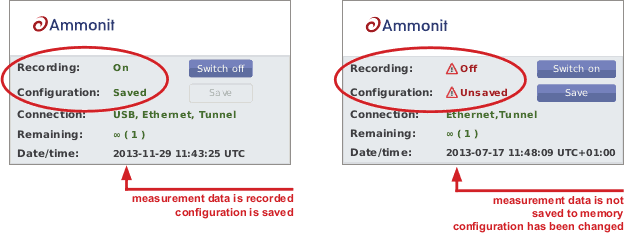
The displays whether Meteo-40 is recording data and whether the current configuration is saved. You can switch on or off recording here and save the configuration after having made any changes.
![[Note]](admon/note.png) | Note |
|---|---|
If you switch
|
| Important |
|---|---|
If you switch
If
|
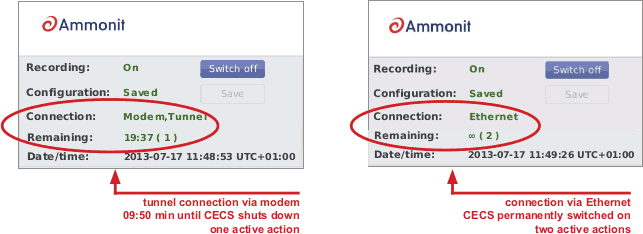
The Meteo-40
displays the current established connections (
Connection), e.g., tunnel connection via modem or using Ethernet without
tunnel in the office. The available connection modes are USB, Ethernet and Modem. If the
data logger is available through the tunnel, it will be shown as
Tunnel in the connections list. The current preferred connection for the
Internet access is written in capital letters.
Additionally, the web interface informs about the remaining time until shut down or
whether
CECS is configured to run permanently (
Remaining). In brackets the number of running actions are displayed,
e.g., online access or upload of CSV file.
The menu of the Meteo-40 web interface consists of four main menu items: System, Measurement, Evaluation and Communication. Each menu item is explained in the following chapters (See Chapter 4, System Configuration to Chapter 7, Communication).
Table 3.2. Menu of the Web Interface
| Menu | Submenu Item |
|---|---|
| System | Information |
| Administration | |
| Upgrade | |
| Device | |
| Camera | |
| Switches | |
| Logbook | |
| Measurement | Sensors |
| Channels | |
| Evaluation | |
| Data | Live |
| Statistics | |
| Gusts | |
| Source | |
| Communication | Schedule |
| Online | |
| AmmonitOR | |
| SCP/FTP/SFTP | |
| SCADA | |
| LAN | |
| WLAN | |
| Modem |