Chapter 14. Administration

Table of Contents

14.1. Installation Requirements
14.1.1. Hardware Requirements
14.1.2. Requirements for the server administrator
14.1.3. Server Installation
14.1.4. AmmonitOR Architecture
14.2. Administration Interface
14.2.1. User administration
14.2.2. Projects administration
14.2.3. Data logger administration
14.3. Customisation
14.3.1. Customisation of logo within your AmmonitOR instance
14.3.2. Customise Imprint, About and legal section
14.4. Common Tasks
14.4.1. Adding Meteo devices SSH Keys
14.4.2. Managing raw data files
14.5. Connecting custom data loggers with custom AmmonitOR
14.6. API for 3rd party applications
14.6.1. General concept
14.6.2. Avaliable responses
14.6.3. API example script

This chapter applies only, if you are the administrator of your own AmmonitOR instance.

14.1. Installation Requirements

If you wish to install AmmonitOR on your server, please contact Ammonit and consider the following aspects.

14.1.1. Hardware Requirements

Consider the following hardware requirements for your AmmonitOR installation. Better hardware means more performance while using AmmonitOR. Recommendations are:

  • A server known to work with Debian Linux

  • Quad core CPU ≥ 2.5 GHz

  • Compatible with the amd64 architecture, i.e. Intel or AMD

  • ≥ 16 GiB RAM

  • ≥ 500 GiB hard disk space

14.1.2. Requirements for the server administrator

For the administration of an AmmonitOR server, you need to be familiar with the following tasks:

  • Debian Linux server administration

  • SSH (including key based authentication)

  • starting/stopping services using systemd

  • Nginx, Gunicorn, PostgreSQL, and RabbitMQ configuration and administration

14.1.3. Server Installation

For remote installation of AmmonitOR by Ammonit, you have to provide:

  • Operating system: Linux, esp. Debian 12 („Bookworm“)

    You can download Debian at https://www.debian.org/releases/bookworm/debian-installer/. The installation guide can be found on http://www.debian.org/releases/stable/installmanual (several languages available).

  • Server must have a public (remote accessible) IP address. A router in between does not cause any problem; the router has to be configured for port forwarding.

  • Server must be accessible over SSH (secure shell). SSH server (package: openssh-server) must be installed on the Linux server.

  • We need either a root account or a user account with full sudo permissions. Use strong passwords, e.g., generated by AGP. For even higher security use login over SSH authorized keys.

  • If the server is only accessible via VPN, it must support Linux client (e.g. OpenVPN). Any proprietary firewall software can lead to problems and may not be supported by Ammonit.

  • Port 443 (or another port of your choice) must be accessible for installation and usage. Optionally also port 80, in addition to port 443.

  • Port 2222 (or another port of your choice) must be accessible for continued server maintenance. The port will be used for remote access via SSH. Port 22 is not advised for security reasons or if a custom tunnel or connect server is configured.

  • Port 4041 has to be accessable from everywhere. The port is used by Meteo-40, Meteo-40 Plus, Meteo-42 and MeteoLaser devices to upload data to AmmonitOR.

  • Ports 22 and 4040 must be accessable from everywhere. These ports are used by Meteo-40, Meteo-40 Plus, Meteo-42 and MeteoLaser devices to setup tunnel or connect connections (only needed, if a custom tunnel or connect server is configured).

  • An email account (IMAP) to collect the data files from Ammonit data loggers. AmmonitOR requires the account's password. The account must have enough memory space to archive the emails.

  • An email account (SMTP) to send reports, messages, etc. from AmmonitOR.

  • Email address of your system administrator.

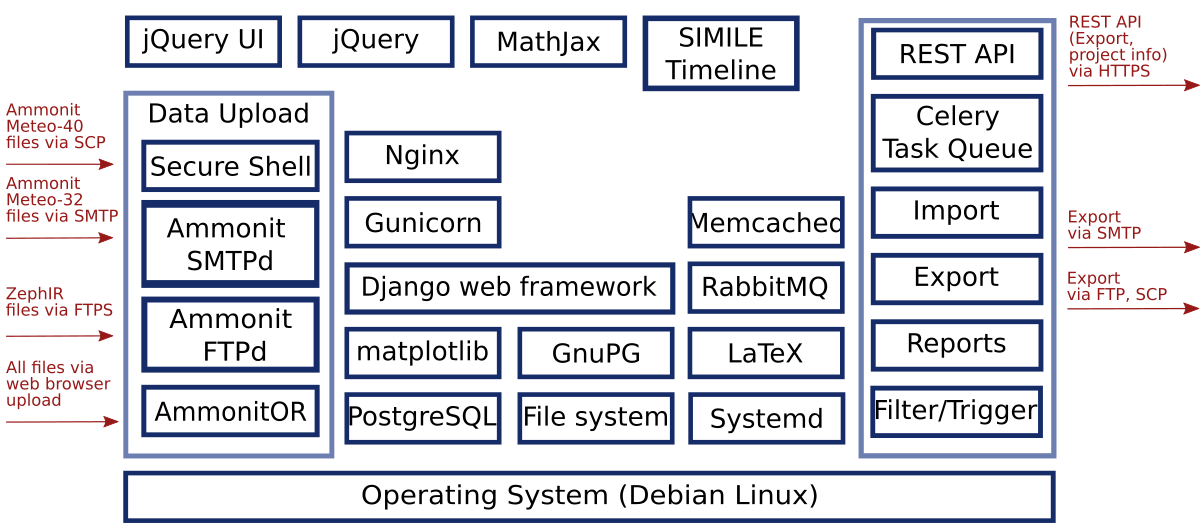
14.1.4. AmmonitOR Architecture

Figure 14.1. AmmonitOR Architecture

AmmonitOR Architecture

14.2. Administration Interface

For maintenance purposes access the administration interface of AmmonitOR. The administration interface is only needed in rare cases. Most configurations can be made in the user interface.

[Important]Important

Each change made in the administration menu is final. There are no confirmation prompts!

Make only changes, which are absolutely necessary to reduce mistakes.

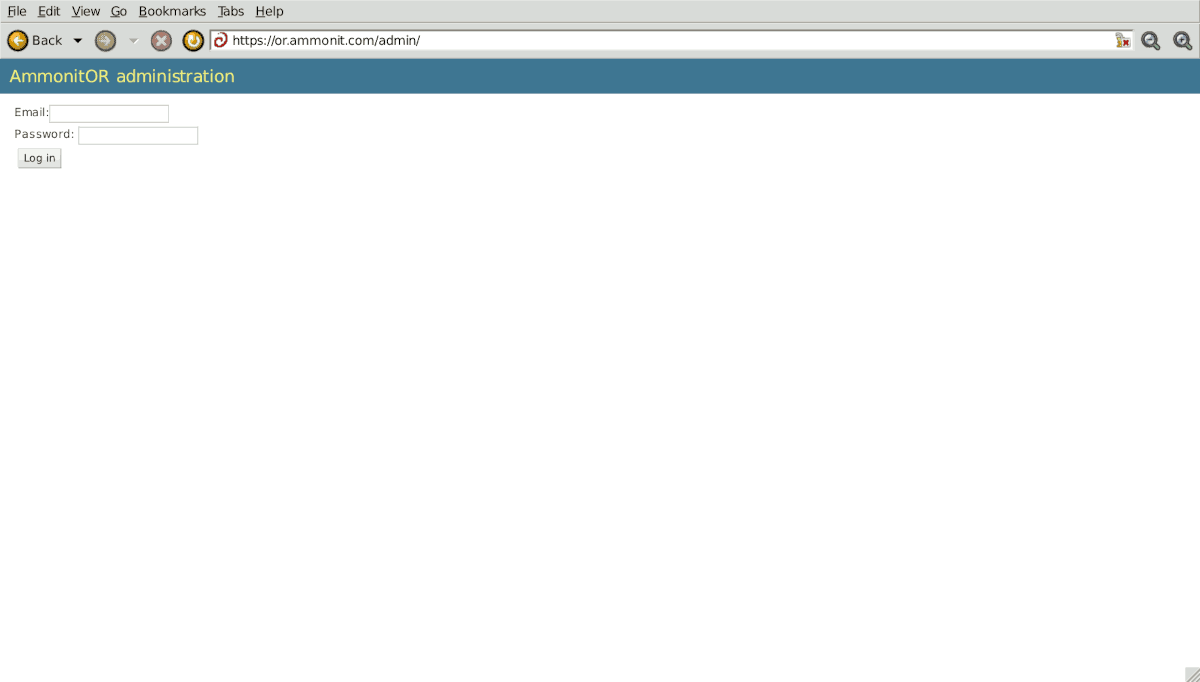
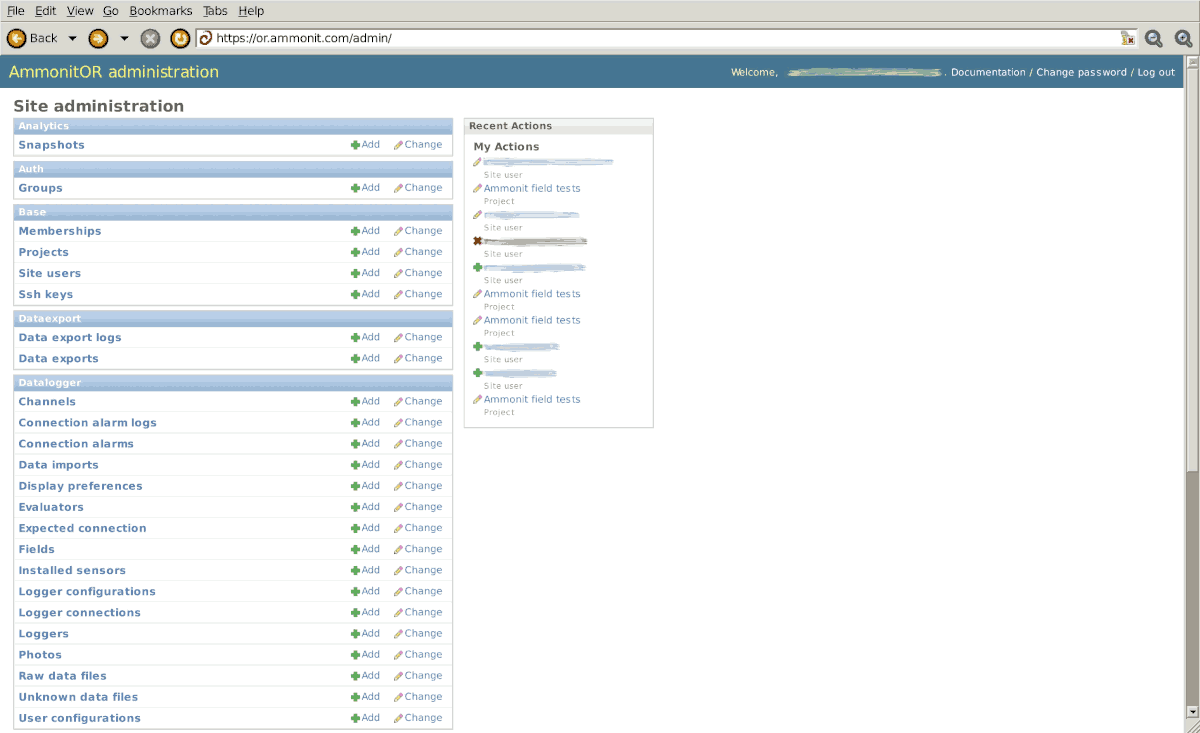
To access the administration interface, replace the Project key in URL with admin (see URL in Figure 14.2, “Administration Log In page”). Login is only possible with admin rights. The most important elements of the administration interface are:

  • User administration -- Site users

  • Projects administration -- Projects

  • Data Logger administration -- Loggers

Figure 14.2. Administration Log In page

Administration Log In page

All administration pages support searching and filtering. The search field is always on the top left. The filtering options are provided on the right side of the list.

In order to edit project settings, the Action dropdown menu or the Add button can be used. The Action dropdown menu is always above the list under the search field. The Add button is on the top right. Each list element is editable, e.g., in the project administration. To do so, click on the item, e.g., project name, to display all details and start editing. All displayed fields can be modified. Save the changes by clicking on Save.

The history of changes can be displayed by clicking on the button on the top right. To display the project, click on the link button.

Figure 14.3. Administration home view

Administration home view

14.2.1. User administration

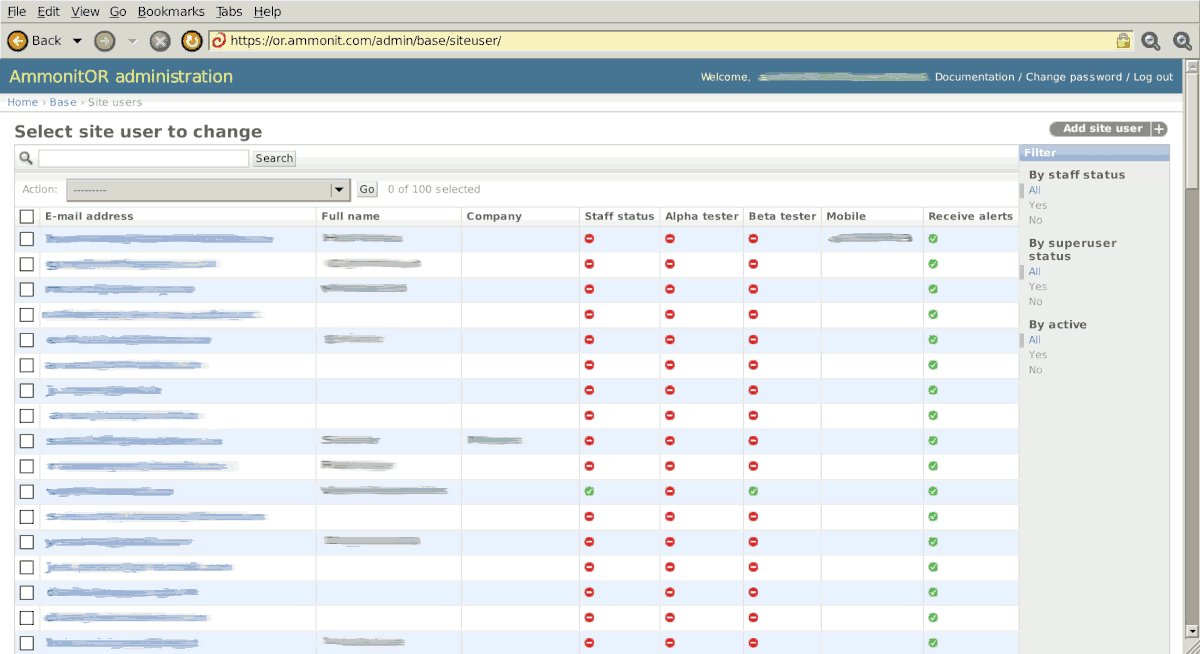
In the user administration site users and access rights can be managed. AmmonitOR displays to which projects the user has been invited to and the permissions related to the project. Usernames and passwords can be changed. New users can be added by clicking on add user on the top right. Optionally, full name, company and telephone number can be entered.

Users can be selected via the search box on the site users page. To perform an action, select an users by activating the checkbox in the first column and choose the action from the dropdown list above the user list. Click on Go to perform the selected action.

In the edit mode of a project five attribute fields are available: username, password, personal info, permissions, important dates and project memberships. Additional project memberships per user can be added; three permission types can be selected.

Superuser

Administrator of AmmonitOR; system / server and content management (only for experienced users)

Staff status

Users working with project data in AmmonitOR (recommended status for site users); not allowed to access the administration interface, only login page.

Alpha tester / beta tester

Optional user permissions. Beta tester can work with new beta features of AmmonitOR. Alpha testers are for internal testing purposes used by Ammonit developers. It is not recommended setting this status to project users.

[Important]Important

By deselecting the active checkbox on the site user edit page, the selected user can be temporarily locked out from AmmonitOR. This feature can be useful in case of spam attacks.

Figure 14.4. Site user administration page

Site user administration page

14.2.2. Projects administration

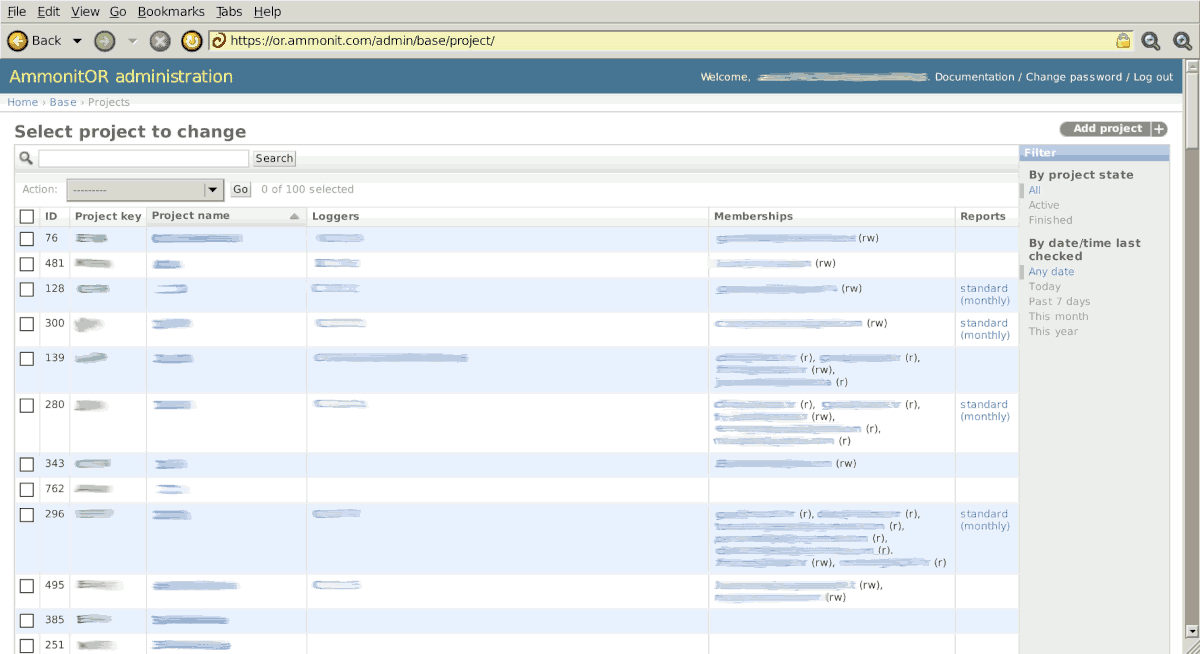
The project administration page provides an overview over all relevant project details: project name, project key, data loggers, project users (members) and available reports.

In order to perform an action, e.g., delete a project or regenerate reports, select one or more projects by activating the checkbox(es) in the first column and choose an action from the dropdown list above. Click on Go to perform the action.

Click on Add project on the top right of the page to set up further projects. The project edit page displays all project details including user memberships. Superusers (see Section 14.2.1, “User administration”) can assign read and write permission to site users. Additionally, users can be added to projects. The Project state indicates whether a project is active or finished.

Figure 14.5. Projects administration page

Projects administration page

14.2.3. Data logger administration

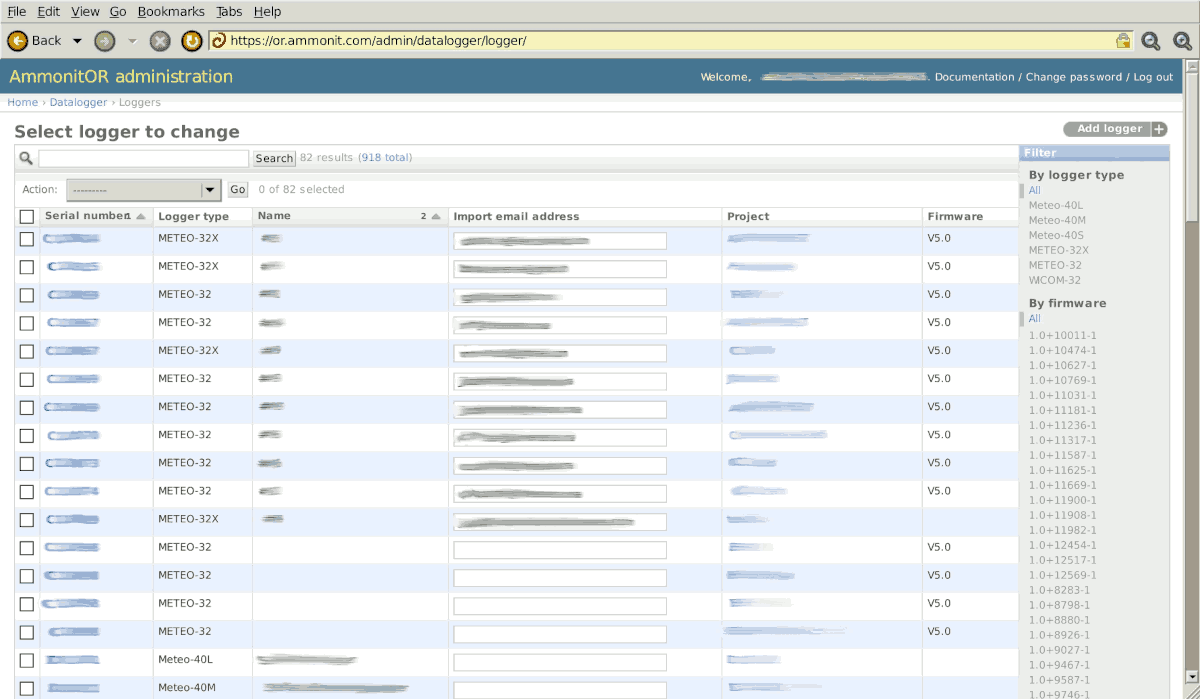
The data logger administration page lists all available data loggers with serial number, data logger type, name, import email address, firmware version and related projects.

To perform an action, e.g., delete a data logger or reimport missing data files, select one ore more data loggers by activating the checkbox(es) in the first column and choose an action from the dropdown list above. Click on Go to perfom the action.

Click on a data logger serial number to edit data logger details. On the data logger edit page AmmonitOR displays all settings of the data logger, e.g., related projects, serial number, name, import email address (Meteo-32), data logger type and firmware version.

[Important]Important

Ignore database table names and database model names. Do not edit the fields!

Figure 14.6. Data logger administration page

Data logger administration page

14.3. Customisation

14.3.2. Customise Imprint, About and legal section

Ammonit Measurement GmbH can't be responsible for your customised web page with AmmonitOR instance, so you have to customise the imprint section and when needed also the about page as well as adding legal notes according to your company policies.

[Important]Important

To edit Imprint and legal notes you need to have permissions to edit the related file directly on the server.

The files can be found under /usr/lib/python3/dist-packages/ammonitor/jinja2/info/

There is also a example folder to be found.

Place the files directly into this folder.

Please be careful and make sure the owner and permissions of these files are correctly set!

The files are standard .txt files, where you can write in HTML and also Jinja2 syntax.

Files to edit are:

  • base.txt

  • about.txt

  • imprint.txt

14.4. Common Tasks

14.4.1. Adding Meteo devices SSH Keys

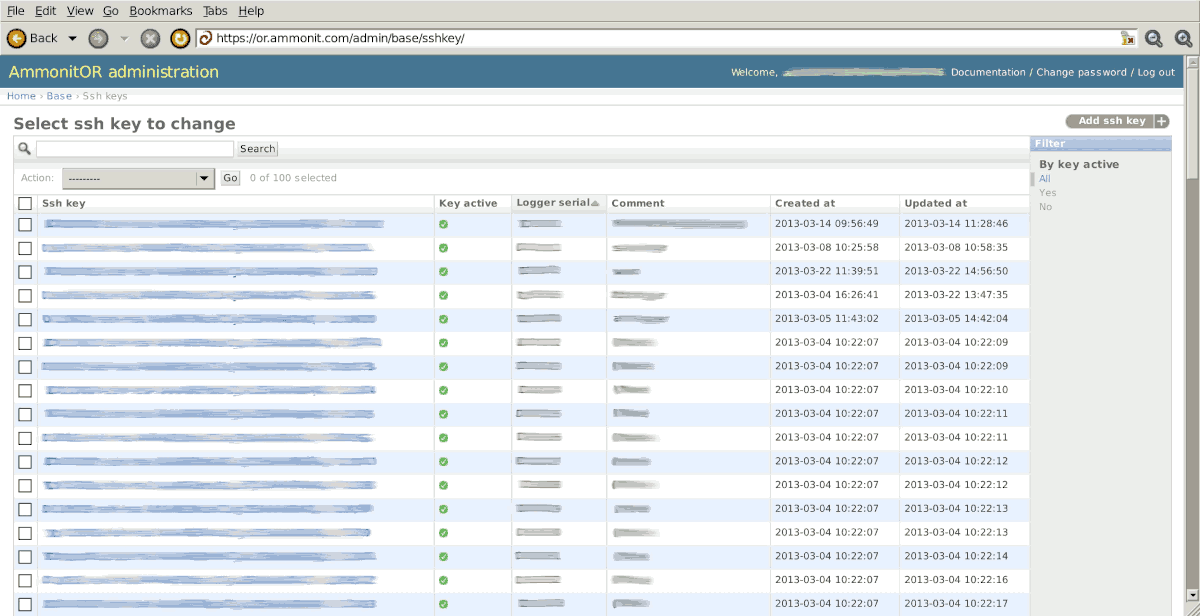
To allow Meteo devices sending e-mails to AmmonitOR, the SSH key of the data logger has to be added in AmmonitOR. The SSH key can be downloaded in the CommunicationAmmonitOR or the CommunicationOnline menu of the data logger web interface. Add the SSH key in the BaseSSH keys menu of AmmonitOR. Click on Add ssh key on the top right of the page.

Figure 14.7. SSH key administration page

SSH key administration page

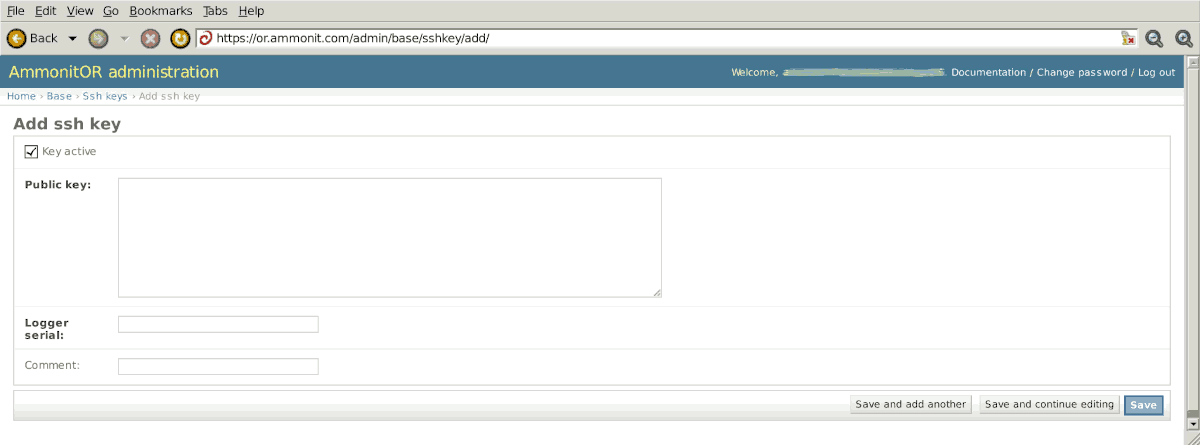
Copy and past the key into the Public key field. Insert the data logger serial number and save the action. This task has to be done once for each data logger.

Figure 14.8. Add SSH key for a data logger

Add SSH key for a data logger

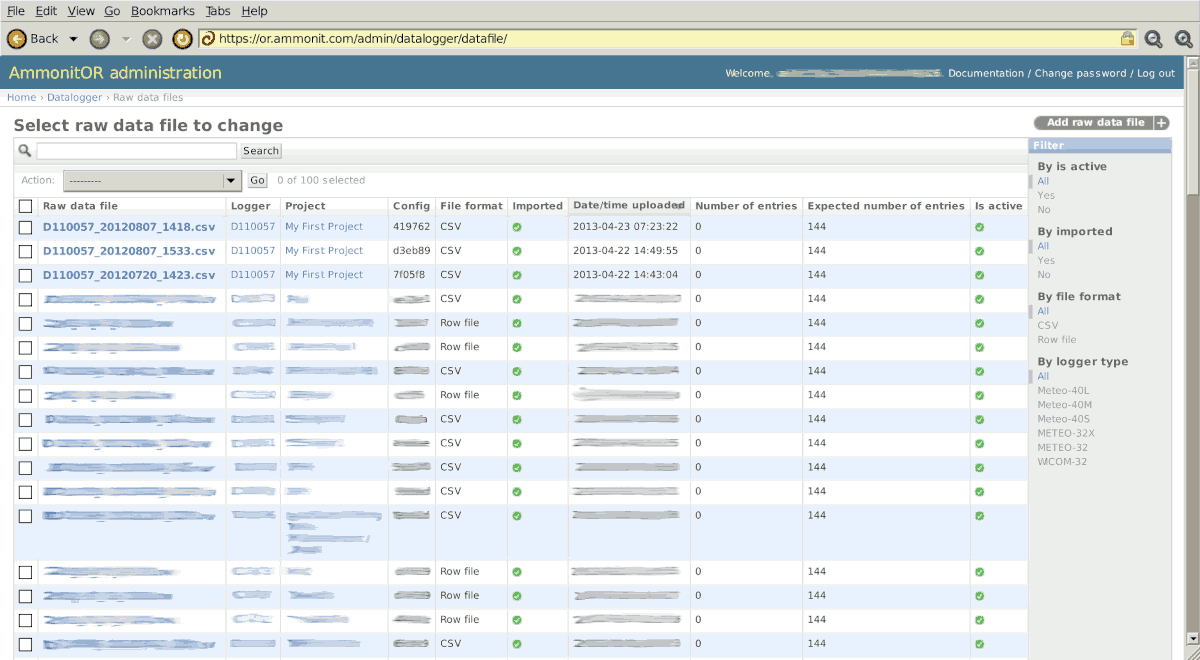
14.4.2. Managing raw data files

The raw data file overview page displays a list of raw data files of all available data loggers. AmmonitOR lists all files imported or not yet imported.

Not yet imported raw data files can be imported by choosing the Reimport data option from the dropdown list above. Click on Go to perform the action. The reimport may take few seconds.

It is not possible to make any changes on the data file edit page. However, the page displays further details about the file, e.g., import method, which is called Email Message-ID or username. AmmonitOR displays, which method has been used to import the raw data file, i.e. SCP (Meteo-40, Meteo-40 Plus and Meteo-42), email (Meteo-32) or manual upload. The related configuation file numbers are listed under Config. In the File field the file name in the database is displayed.

Figure 14.9. Raw data file page

Raw data file page

14.5. Connecting custom data loggers with custom AmmonitOR

The following information is required for setting up a proper connection between custom AmmonitOR installation and Ammonit data loggers:

  • Properly working custom AmmonitOR instance (https://or.yourdomain.com/)

  • Properly working email import for METEO-32 data loggers

  • Properly working tunnel or connect access for Meteo devices

  • Administration rights on AmmonitOR and data logger

  • Optional: Properly working custom tunnel or connect server (Tunnel or Connect statistics at https://stats.tunnel.yourdomain.com/ or https://overview.connect.yourdomain.com/)

Ammonit Meteo devices send data via SCP to the AmmonitOR server. Thus AmmonitOR must authenticate the data logger with its SSH key. The connection is established via a tunnel or connect server. AmmonitOR Project key and serial number of the data logger are the references for managing data in the AmmonitOR database. To connect Meteo-40, Meteo-40 Plus and Meteo-42 data loggers with your AmmonitOR installation, some settings have to be made:

  • Open the Meteo-40, Meteo-40 Plus or Meteo-42 web interface. Log in as Admin.

  • Go to the CommunicationOnline menu and set the option Ammonit tunnel or Ammonit connect. Save the configuration.

  • Go to the CommunicationAmmonitOR menu and enter the project key from of related AmmonitOR project. Save the configuration.

If a custom tunnel or connect server is used, further settings have to be made:

  • Open the Meteo-40, Meteo-40 Plus and Meteo-42 web interface. Log in as Admin

  • Go to the CommunicationOnline menu and set the option Custom tunnel.

  • Enter your tunnel or connect login, e.g., logger@Dnnnnnn.tunnel.yourdomain.com or logger@Dnnnnnn.connect.yourdomain.com

  • Empty the field Tunnel port or Connect port, if an entry has been made. Save the configuration.

  • Click on Download SSH Key. A new page opens and displays the SSH key of the data logger. AmmonitOR required this key for authentication. The SSH key has to be added in AmmonitOR under https://or.yourdomain.com/admin/base/sshkey/; see below.

  • Go to the CommunicationAmmonitOR menu and enter the project key from of data logger related AmmonitOR project. Save the configuration.

The next step is to connect AmmonitOR with the data logger:

  • Open the AmmonitOR administration page (https://or.yourdomain.com/admin/). Log in as Admin.

  • If the data loggers has already been added to a project, perform the following actions (Go to the next bullet point to add a data logger to a project):

    • Go to the BaseSsh keys menu and click on Add ssh key in the upper right corner.

    • Paste the copied SSH key from the data logger in the fiels Public key. Enter the serial number of the data logger in the field Logger serial. A comment can be added.

    • Click on Save in the lower right corner.

  • If a data loger has to be added to a project, perform the following actions:

If a data logger is online available, it is shown in the Connection log (see also Section 5.5, “Connections”) or see additional tunnel tool https://stats.tunnel.yourdomain.com/. The Stats-page lists all tunnel statistics.

14.6. API for 3rd party applications

API (application progarm interface) allows creating a connection between the third party applications and AmmonitOR to exchange data. The third party application can download the raw data files with metadata (additional information) form AmmonitOR projects. The exchange of information is safe and protected with tokens authentication method. The detailed information about its functionality and security is described.

This chapter contains the exemplary requests to demonstrate the functionality of API connection using curl- a library for transferring the data. This library is avaliable for a big variety of of platforms (including Windows, Linux and OS X). Using this library and given commands the functionality of API can be demonstrated.

14.6.1. General concept

The general concept behind the connection of third party applications is usage of http GET request to connect to particular AmmonitOR addresses (urls) to get data and information. The data is returned as response in JSON format, which can be read by the application. It is simmilar to requesting the standard url, but done internally between AmmonitOR and application.

  • At first the application needs to obtain the token for authentication with a http POST request to AmmonitOR. This request needs to be supplied with:

    • A valid AmmonitOR username (as username)

    • A project key (as project_key)

    • The application name (as app_id) in the data section of request. You can pick any name you want, it is only to graphically distinguish the applications using the API in AmmonitOR later on. Please keep the names of your application/script unique, otherwise you won't know which application you granted the permission to access the data!

    curl -X POST -d "username=user@example.com&project_key=EWNP&app_id=ExampleApp" https://or.ammonit.com/api/auth-token/

    Such information allows AmmonitOR to recognize the application details. AmmonitOR will then check if user has a permission to given project (as well as the download permission) and generate a unique token which will be returned as response to the request (in JSON format). Using this token for authentication for further connections with AmmonitOR. You can only receive this token once during your initial request, so please write it down or make your app save it. If you forget it, you will have to define new application and request a new token.

  • In the same time AmmonitOR will create an application enquiry in a project. Every new enquiry will display a information message box in the project views. It can also be accessed via project page under 3rd party applications. Any user in a project having both read and download permissions, can then accept the application enquiry or reject it. Only accepted applications can connect to AmmonitOR to get data. The information about the user who acceptted/restricted the application along with the time of this operation is recorded.

Figure 14.10. User interface to interact with the applications management.

User interface to interact with the applications management.

  • If user who requested the third party application connection looses the project permissions, the token is withdrawn and the application looses the connection. Similarly when the application gets restricted or deleted in the view by any user, the connection is lost.

  • After gaining access, the third party application can request the further urls and data, while making the next http GET requests. This time the token received by the first connection needs to be passed in the request authorization header (just like in the example below). AmmonitOR only accepts the requests with a proper token and after confirming all user permissions.

    curl -X GET https://or.ammonit.com/api/requested_url/ -H 'Authorization: Token 0eb9392d6b5fe83c35e2a25d7b6c0c1b61f0519f'

14.6.2. Avaliable responses

AmmonitOR offers a range of responses for third party applications. The user input parameters to the url are:

  • project_key e.g. EWNP

  • device_serial e.g. D110057

  • file_type is the name of the data file type you want to list or download. The following selections are possible: primary, secondary, tertiary,config, gust, logbook

  • filename.fileformat with the name just as original_filename parameter. E.g. D110057_20160808_0000.csv

  • export_id being the ID number of the selected export. The export id is visible in the URL i.e.: https://or.ammonit.com/EWNP/D110057/export/14624/ has the export_id equal 14624.

  • date_from and date_to for selecting the period for exports and connection boundaries in format YYYY-MM-DDTHH:MM:SS E.g. 2017-01-01T00:00:00

  • date for selecting the day for which the daily completeness value will be shown, in format YYYY-MM-DDTHH:MM:SS E.g. 2017-01-01T00:00:00

List of avaliable requests/responses:

  • Connect application with AmmonitOR and obtain authentication token

    https://or.ammonit.com/api/auth-token/

    {"token": "0eb9392d6b5fe83c35e2a25d7b6c0c1b61f0519f"}

  • List of devices in project with their basic metadata

    https://or.ammonit.com/api/{project_key}/loggers-list/

    [{"project": {"key": "EWNP", "name": "Example project"}, "serial": "D110057", "override_name": "abcdefgh", "series": "meteo-32", "station_number": "1", "override_timezone": "", "override_latitude": 52.5025, "override_longitude": 13.434849, "override_altitude": 40, "is_active": true}, {"project": {"key": "EWNP", "name": "Example project"}, "serial": "C000001", "override_name": "My data logger", "series": "meteo-32", "station_number": "2", "override_timezone": "", "override_latitude": 52.5025, "override_longitude": 13.434849, "override_altitude": 30, "is_active": true}]

  • Basic information about particular device in project

    https://or.ammonit.com/api/{project_key}/{device_serial}/

    {"project": {"key": "EWNP", "name": "1"}, "serial": "D110057", "override_name": "abcdefgh", "series": "meteo-32", "station_number": "1", "override_timezone": "", "override_latitude": 52.5025, "override_longitude": 13.434849, "override_altitude": 40, "is_active": true}

  • List of all the device measurement files in AmmonitOR

    https://or.ammonit.com/api/{project_key}/{device_serial}/files/

    [{"original_filename": "D110057_20160808_0000.csv", "is_valid": true}, {"original_filename": "D110057_20160809_0000.csv", "is_valid": true}]

  • List of all the device files in AmmonitOR

    https://or.ammonit.com/api/{project_key}/{device_serial}/files/{file_type}/

    [{"original_filename": "D110057_20160808_0000_sec.csv", "source": "scp"}, {"original_filename": "D110057_20160809_0000_sec.csv", "source": "scp"}]

  • Download of the measurement file content (one file per request only).

    https://or.ammonit.com/api/{project_key}/ {device_serial}/files/{filename.fileformat}/

    {"original_filename": "D110057_20160808_0000.csv", "is_valid": true, "file_content": "Date/time,V1;wind_speed;Avg,V1;wind_speed;Max,V1;wind_speed;Min, V1;wind_speed;StdDev,V1;wind_speed;Count\n 2016-08-08 00:00:00,1,2,3,4,5..."}

  • Download of the file content (one file per request only).

    This function is dedicated to primary files. Any other file type can be downloaded via API using the Original Data File Export function.

    https://or.ammonit.com/api/{project_key}/ {device_serial}/files/{file_type}/{filename.fileformat}/

    {"original_filename": "D110057_20160808_0000_sec.csv", "file_content": "Date/time,V1;wind_speed;Avg,V1;wind_speed;Max,V1;wind_speed;Min, V1;wind_speed;StdDev,V1;wind_speed;Count\n 2016-08-08 00:00:00,1,2,3,4,5..."}

  • List of all the exports with their basic metadata.

    https://or.ammonit.com/api/{project_key}/{device_serial}/export-list/

    [{"export_format": "csv", "export_period": "all", "id": 75, "name": "Test Export 1", "recipients": "friend@example.com", "subscribers": [{"company": "Ammonit", "email": "co-worker@example.com", "name": "Co-Worker"}, {"company": "Ammonit", "email": "me@example.com", "name": "Me"}]}, {"export_format": "csv", "export_period": "weekly", "id": 76, "name": "Test Export 2", "recipients": "cusin@example.com", "subscribers": [{"company": "Enterprise", "email": "boss@example.com", "name": "Boss"}, {"company": "Enterprise", "email": "vice-boss@example.com", "name": "Vice Boss"}]}]

  • Download of the export content.

    https://or.ammonit.com/api/ {project_key}/{device_serial}/export/{export_id}/

    {"export_content": [["D110057-2016-W29.csv", "datetime,Top;wind_speed;Avg (m/s),Top;wind_speed;Max (m/s),Top;wind_speed;Min (m/s),Top;wind_speed;StdDev (m/s),Top;wind_speed;Count ())\r\n2016-07-19 00:00:00,1.5349,3.9522,0.441,0.711,600..."], ["D110057-2016-W30.csv", "datetime,Top;wind_speed;Avg (m/s),Top;wind_speed;Max (m/s),Top;wind_speed;Min (m/s),Top;wind_speed;StdDev (m/s),Top;wind_speed;Count ())\r\n2016-07-26 00:00:00,2.5432,4.5412,0.216,0.876,600..."]]}

  • Download of the export content in JSON format

    This view only supports JSON formats of data exports - currently only the Ministry of Energy (Saudi Arabia) JSON.

    https://or.ammonit.com/api/ {project_key}/{device_serial}/export/{export_id}/direct/

    {"STATION_ID": "G233193", "data": [{"A1_channel_Avg_V": 1.3344, "TIMESTAMP": "2024-12-04 00:00:00", "Top_wind_speed_Avg_m/s": 15.58...}, {"A1_channel_Avg_V": 2.3344,"TIMESTAMP": "2024-12-04 00:10:00", "Top_wind_speed_Avg_m/s": 16.58...}]}

  • Get information about the device completeness.

    https://or.ammonit.com/api/{project_key}/{device_serial}/completeness/

    {"total" : 75.0, "monthly": {'2017-12': 50.0, '2018-01': 100.0}}

  • Get information about the device daily completeness.

    https://or.ammonit.com/api/{project_key}/{device_serial}/completeness/day/

    {"2017-12-24": 100.0}

  • Get details about the connections and their parameters

    https://or.ammonit.com/api/{project_key}/{device_serial}/connections/

    `[{"connection_type":"online","time_connect":"2021-10-21T14:04:11.325749", "time_disconnect":"2021-10-21T14:04:12.290390","firmware_version":"1.17", "logger_ipaddr":"127.121.12.5", "logger_time_connect":null,"logger_timezone":"", "server":"tunnel.ammonit.com","access_code":"Dach"}]

If your application requires more data, information, views or simply you would want to ask us questions about connecting your application to AmmonitOR, feel free to contact us. We are opened for providing more options in our API.

14.6.3. API example script

        #!/usr/bin/python3

# Example client for the AmmonitOR REST API
# Copyright 2017 Ammonit Measurement GmbH

import argparse
import json
import sys

import requests

SSL = {
    "disable": False,
    "enable": True
}


def get_options():
    parser = argparse.ArgumentParser(formatter_class=argparse.RawTextHelpFormatter)
    parser.add_argument(
        "-a",
        "--app",
        help="Provide the application name",
        default="Ammonit API example client",
    )
    parser.add_argument("-d", "--device", help="Device serial, e.g. 'D123456'")
    parser.add_argument(
        "-D",
        "--date",
        help="Specify date to get completeness " "e.g. 2017-01-01T00:00:00",
    )
    parser.add_argument("-e", "--export", help="Export ID e.g. 123")
    parser.add_argument(
        "-f",
        "--file",
        help="Device original filename, " "e.g. 'D123456_20160808.csv'",
    )
    parser.add_argument(
        "-F",
        "--date_from",
        help="Specify date from, " "e.g. 2017-01-01T00:00:00",
    )
    parser.add_argument(
        "-i",
        "--filetype",
        help="\n".join(["Specify the type of file:"] + FILE_TYPES),
    )
    parser.add_argument(
        "-p",
        "--project",
        help="AmmonitOR project key, e.g. 'ABCD'",
        required=True,
    )
    parser.add_argument(
        "-s",
        "--server-url",
        help="Server URL to use, e.g. https://or.ammonit.com",
        default="https://or.ammonit.com",
    )
    parser.add_argument(
        "-t",
        "--token",
        help="Token to communicate with AmmonitOR, "
        "coming from requesting the permission view",
    )
    parser.add_argument(
        "-T", "--date_to", help="Specify date to, " ".e.g. 2017-12-31T00:00:00"
    )
    parser.add_argument(
        "-u",
        "--username",
        help="Valid AmmonitOR user, e.g. bach@example.com",
        required=True,
    )
    parser.add_argument(
        "-v",
        "--view",
        help="\n".join(
            ["Avaliable views:"]
            + sorted(
                [
                    "%-12s - %s" % (k, v.__doc__ or "(undocumented)")
                    for k, v in REQUESTABLES.items()
                ]
            )
        ),
        required=True,
    )
    parser.add_argument(
        "-n",
        "--no-ssl",
        help="If no ssl is provided, use this flag to make it work",
        required=False,
        default=False,
    )
    return parser.parse_args()


def format_output(output):
    return json.dumps(json.loads(output.decode("utf-8")), indent=4, sort_keys=True)


def get_token(options, header, no_ssl):
    "make a enquiry for a new app in AmmonitOR"
    url = options.server_url + "/api/auth-token/"
    data = {
        "username": options.username,
        "project_key": options.project,
        "app_id": options.app,
    }
    r = requests.post(url, data, verify=no_ssl)
    print(format_output(r.content))


def list_devices(options, header, no_ssl):
    "list AmmonitOR devices in project"
    if options.project:
        url = options.server_url + "/api/%s/loggers-list/" % (options.project)
        r = requests.get(url, headers=header, verify=no_ssl)
        print(format_output(r.content))
    else:
        print("Please provide the project key!")


def get_device_data(options, header, no_ssl):
    "get the device metadata"
    if options.project and options.device:
        url = options.server_url + "/api/%s/%s/" % (
            options.project,
            options.device,
        )
        r = requests.get(url, headers=header, verify=no_ssl)
        print(format_output(r.content))
    else:
        print("Please provide the project key and device serial!")


def list_files(options, header, no_ssl):
    "list data files for a device"
    if options.project and options.device and options.filetype:
        url = options.server_url + "/api/%s/%s/files/%s/" % (
            options.project,
            options.device,
            options.filetype,
        )
        r = requests.get(url, headers=header, verify=no_ssl)
        print(format_output(r.content))
    else:
        print("Please provide the project key and device serial!")


def get_download(options, header, no_ssl):
    "download data files of given project and device"
    if options.project and options.device and options.file and options.filetype:
        url = options.server_url + "/api/%s/%s/files/%s/%s/" % (
            options.project,
            options.device,
            options.filetype,
            options.file,
        )
        r = requests.get(url, headers=header, verify=no_ssl)
        print(format_output(r.content))
    else:
        print(
            "Please provide the project key, device serial, "
            " and name of file to be downloaded!"
        )


def list_exports(options, header, no_ssl):
    if options.project and options.device:
        url = options.server_url + "/api/%s/%s/export-list/" % (
            options.project,
            options.device,
        )
        r = requests.get(url, headers=header, verify=no_ssl)
        print(format_output(r.content))
    else:
        print("Please provide the project key and device serial!")


def get_export_download(options, header, no_ssl):
    if options.project and options.device and options.export and options.date_from:
        url = options.server_url + "/api/%s/%s/export/%s/?date_from=%s&date_to=%s" % (
            options.project,
            options.device,
            options.export,
            options.date_from,
            options.date_to,
        )
        r = requests.get(url, headers=header, verify=no_ssl)
        print(format_output(r.content))
    else:
        print(
            "Please provide the project key, device serial, export id and" " date from!"
        )


def get_export_direct_download(options, header, no_ssl):
    if options.project and options.device and options.export and options.date_from:
        url = options.server_url + "/api/%s/%s/export/%s/direct/?date_from=%s&date_to=%s" % (
            options.project,
            options.device,
            options.export,
            options.date_from,
            options.date_to,
        )
        r = requests.get(url, headers=header, verify=no_ssl)
        print(format_output(r.content))
    else:
        print(
            "Please provide the project key, device serial, export id and" " date from!"
        )


def get_completeness_values(options, header, no_ssl):
    if options.project and options.device:
        if options.date_from and options.date_to:
            url = (
                options.server_url
                + "/api/%s/%s/completeness/?date_from=%s&date_to=%s"
                % (
                    options.project,
                    options.device,
                    options.date_from,
                    options.date_to,
                )
            )
        else:
            url = options.server_url + "/api/%s/%s/completeness/" % (
                options.project,
                options.device,
            )
        r = requests.get(url, headers=header, verify=no_ssl)
        print(format_output(r.content))
    else:
        print(
            "Please provide the project key, device serial and optionally"
            " both date from and date_to!"
        )


def get_completeness_day(options, header, no_ssl):
    if options.project and options.device:
        if options.date:
            url = options.server_url + "/api/%s/%s/completeness/day/?date=%s" % (
                options.project,
                options.device,
                options.date,
            )
            r = requests.get(url, headers=header, verify=no_ssl)
            print(format_output(r.content))
        else:
            print("Please provide the date!")
    else:
        print("Please provide the project key and device serial")


def get_connections(options, header, no_ssl):
    if options.project and options.device:
        if options.date_from and options.date_to:
            url = (
                options.server_url
                + "/api/%s/%s/connections/?date_from=%s&date_to=%s"
                % (
                    options.project,
                    options.device,
                    options.date_from,
                    options.date_to,
                )
            )
            r = requests.get(url, headers=header, verify=no_ssl)
            print(format_output(r.content))
        else:
            print("Please provide the date from and to!")
    else:
        print("Please provide the project key and device serial")


REQUESTABLES = {
    "device": get_device_data,
    "download": get_download,
    "export_file": get_export_download,
    "export_file_direct": get_export_direct_download,
    "exports": list_exports,
    "files": list_files,
    "devices": list_devices,
    "permission": get_token,
    "completeness": get_completeness_values,
    "day_completeness": get_completeness_day,
}


FILE_TYPES = ["primary", "secondary", "tertiary", "config", "gust", "logbook"]


if __name__ == "__main__":
    options = get_options()

    header = None
    no_ssl = SSL["enable"]
    if options.no_ssl:
        no_ssl = SSL["disable"]

    if options.view != "permission":
        if options.token:
            header = {"Authorization": "Token " + options.token}
        else:
            print("Please provide the token for authentication!")
            sys.exit(1)

    if options.view in REQUESTABLES.keys():
        REQUESTABLES[options.view](options, header, no_ssl)
    else:
        print("Unknow view '%s'" % options.view)
        print("Use one of " + ", ".join(sorted(REQUESTABLES.keys())))